How to Use DE-_1: De-Ess, De-Mud, De-Box and the Stereo Modes
How DE-_1's three sections work — Frequency, Threshold, Range and Q — how to use Stereo, Mid/Side and Left/Right, and which presets to start from.
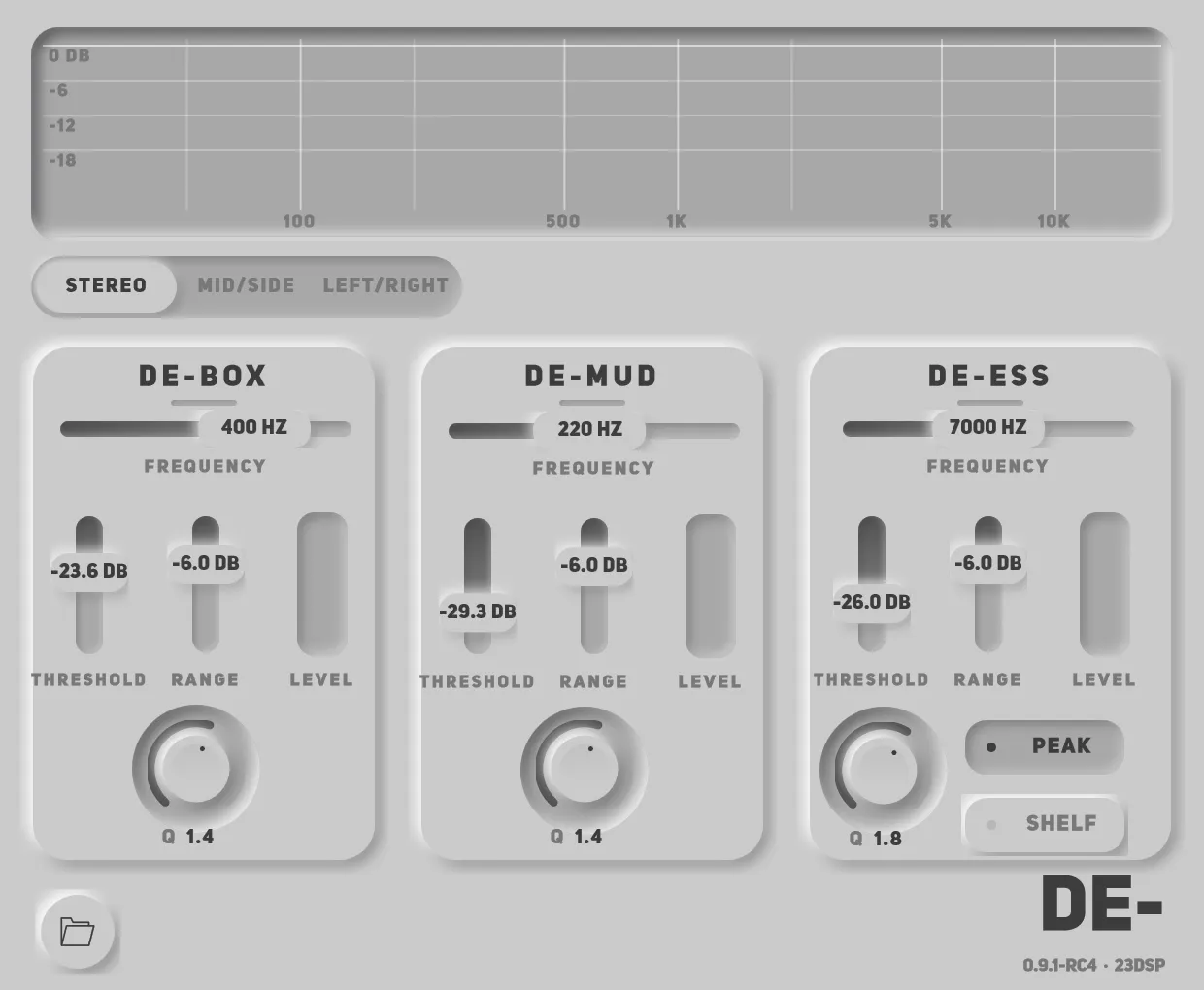
DE-_1 has three sections and a stereo mode switch. This guide goes through what each control does, how to set a section up from nothing, how the Mid/Side and Left/Right modes change the job, and which presets to reach for first.
Key takeaways
- Every section works the same way: Frequency picks the spot, Threshold decides when it cuts, Range caps how much, Q sets how narrow.
- Thresholds are absolute. On a quiet track a preset may barely touch it — lower the Threshold rather than raising the Range.
- Stereo with Link on is the classic De-. Mid/Side and Left/Right let the two halves of a signal take different settings.
- The presets are filed by source. Start from the one named for what you are mixing.
The three sections
| Section | Range | What it is for |
|---|---|---|
| De-Box | 250–500 Hz | the hollow, cardboard tone of close mics, small rooms and some drums |
| De-Mud | 150–350 Hz | low-mid build-up that makes a vocal, a bass or a whole mix feel thick |
| De-Ess | 4–12 kHz | S, T and SH sounds, cymbal spit, and brittle top end |
De-Mud and De-Box overlap between 250 and 350 Hz. If the problem sits there, use one section for it, not both at the same frequency.
The four controls
Each section has the same four, and they only make sense together.
Frequency
Where the cut happens. For De-Ess this is where the S lives on that particular voice — usually somewhere between 5 and 9 kHz, lower on a deep voice, higher on a bright one.
Threshold
The level at which the section starts to cut. Above it, the filter moves; below it, the section does nothing at all. Pull it down until the Level meter beside the section starts moving on the problem sounds, and stops moving in between them.
The threshold is an absolute level, not a relative one. Several of the six presets De- originally shipped with were tuned for material near full scale, so on a track peaking around −10 dBFS they barely engage. If a preset seems to do nothing, lower the Threshold first.
Range
The most the section will ever take out, up to 18 dB. This is the safety rail: however loud a passage gets, the cut cannot go further than Range allows. Start around −6 dB for a light touch and go deeper only if you can still hear the problem.
Q
How narrow the cut is. A high Q takes out a sharp resonance and leaves its neighbours alone; a low Q is broader and more like a gentle tone change.
Peak and Shelf
De-Ess has one more switch. Peak is a bell at the Frequency, for an S that sits in one place. Shelf cuts everything above the Frequency, for top end that is harsh across a wide area. Switching to Shelf sets the Q to 1.0 — that is how the original behaved, and it is kept.
Setting up a section from nothing
- Set Range to about −6 dB, so nothing goes wrong while you search.
- Pull Threshold all the way down so the section cuts constantly.
- Sweep Frequency until the problem gets noticeably quieter — that is the spot.
- Raise Threshold until it only cuts on the problem sounds. The Level meter should move on the S and rest between them.
- Adjust Range for how much, and Q for how narrow.
The screen above the sections shows how much each one is taking out as it happens, which makes step 4 much easier than doing it by ear alone.
The stereo modes
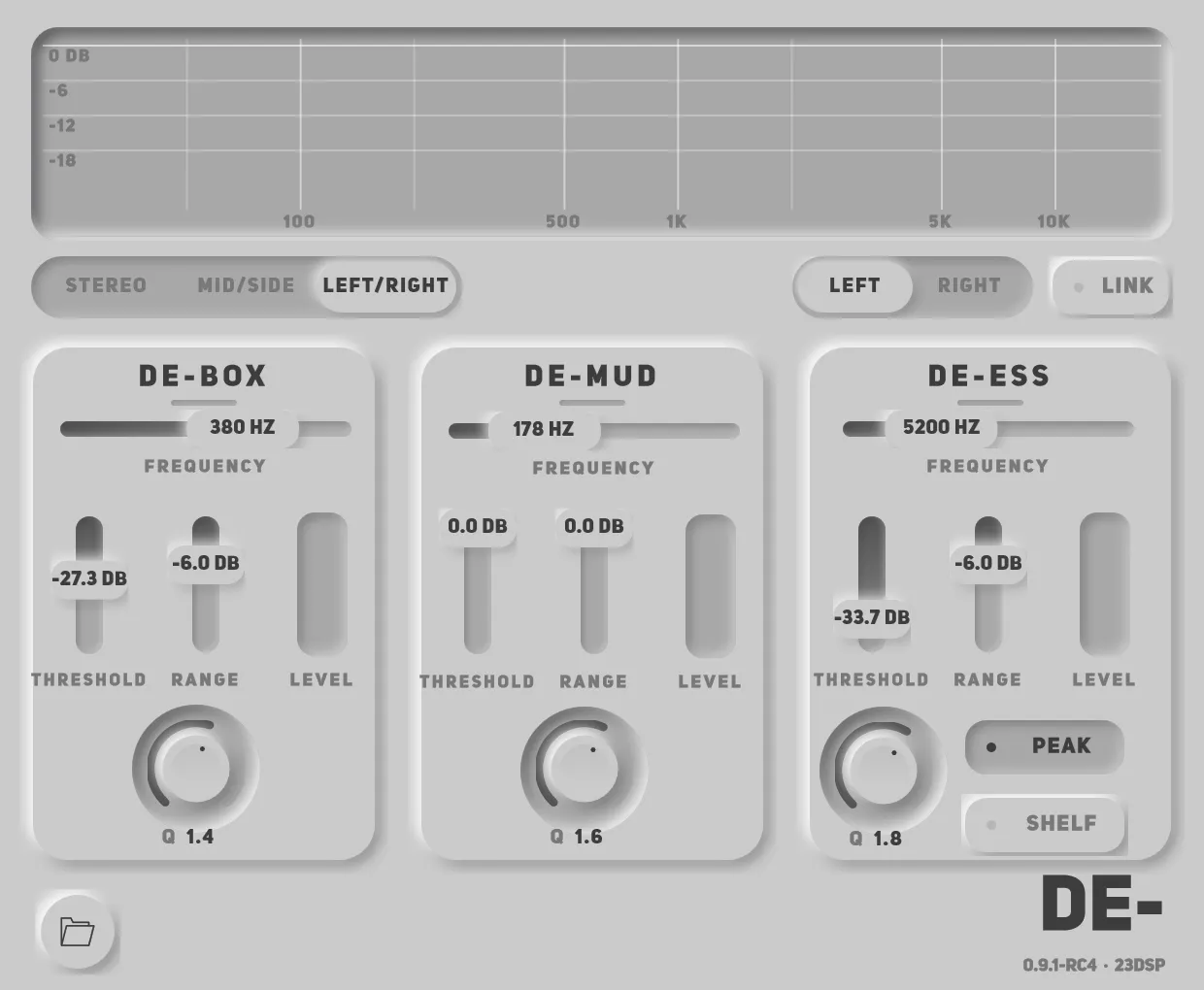
Left/Right, left channel selected.
The switch at the left of the window decides what the two halves of the signal are.
- Stereo — both channels processed together. This is the classic De-, and the default.
- Mid/Side — the centre of the image and its edges get separate settings.
- Left/Right — each channel of a stereo pair gets separate settings.
In Mid/Side and Left/Right, the switch on the right picks which half the controls are showing, and Link decides whether the two halves follow each other. When you unlink, the second half starts as a copy of the first, so nothing jumps — then select it and change what needs changing.
When Mid/Side helps
- A doubled or widened vocal where the S builds up at the edges. De-ess the Side only and the centre vocal keeps all its air. This is the Side Sibilance preset, and the wide vocal demo on the product page is exactly that.
- A mix whose low mids feel thick in the middle but whose width is fine. Take the mud out of the Mid only.
- Wide cymbals and room mics that are harsh at the edges while the snare and kick in the centre are fine.
When Left/Right helps
A stereo pair that was not recorded evenly: two overheads at different distances, a pair of room mics in different corners, a double-tracked guitar where one take is boxier than the other. Unlink, and treat each side for what it actually has.
The presets
68 of them, filed by what you are mixing. The browser opens from the folder button.
| If you are working on | Start with |
|---|---|
| A female vocal | Female Sibilance, or Female Vocal Clean-up for all three problems at once |
| A male vocal | Male Sibilance, or Male Proximity Mud if it was recorded close |
| Rap | Rap Sibilance, or Rap Vocal Control |
| Hats and cymbals | Hi-Hat Tame, Cymbal Wash |
| A snare | Snare Box, Snare Body Ring |
| A drum loop | Drum Loop Clean-up |
| Bass | Bass Mud, Bass Boxy Mids |
| Guitar | Guitar Fizz, Guitar Boxiness |
| Piano and keys | Piano Low Mid, Piano Clean-up |
| Brass and sax | Brass Blare, Sax Squeal |
| The mix bus | Mix Sibilance, Mix Low Mid Control, Master Clarity |
| The stereo image | Side Sibilance, Mid Mud Control, Stereo Pair Match |
Four come in a normal and a Firm version — Female Sibilance, Male Sibilance, Hi-Hat Tame and Bass Mud. Try the normal one first. There are also four plain starting points — De-Ess, De-Mud, De-Box and All Three — and the six presets De- originally shipped with, unchanged.
If you saved your own presets in De-, import the .preset file through the browser and it loads as
it was. The release post covers moving from De- in more detail.